

In this article we are going learn how to integrate PostgreSQL with .Net Aspire as you know .Net Aspire is used to build cloud-native applications.
If want to learn How to integrate .NET Aspire with PostgreSQL
In this article, we cover:
- Create a .Net Aspire Starter App.
- Solution Explorer View of Project
- Adding PostgreSQL to App Host Project
- View after Adding Aspire.Hosting.PostgreSQL NuGet packages to the project.
- Adding PostgreSQL Resource
- Adding Data Volume
- Adding WithDataBindMount
- Installing Packages in API Service Project.
- After adding the All NuGet package to the Project.
- Adding Model to API Service Project.
- Code Snippet of Employee Model
- Adding Database Context Class.
- Adding Class with name DataDbContext which is inheriting from DbContext class.
- Adding API Controller.
- Added Empty API Controller
- Code Snippet of EmployeesController
- Adding Services to Program.cs class of API Service
- Aspire Dashboard
- Creating PostgreSQL Database Using pgAdmin.
- pgAdmin Database Dashboard
- Creating Database from pgAdmin
- Creating Table “Employee”
- Call API Service for Inserting data using Postman.
- View Inserted Data from PgAdmin
What is PostgreSQL?
PostgreSQL, or Postgres, is an open-source, powerful, and reliable database management system. It supports advanced features like ACID compliance, extensibility, JSON data handling, full-text search, and replication. Known for its scalability, it’s used in web apps, data warehousing, and enterprise applications. It’s cost-effective, flexible, and backed by a strong community.
Create a .Net Aspire Starter App.


After selecting the project, click the “Next” button to proceed.
A new dialogue will appear, prompting you to configure your new project. Within this dialogue, you will be asked to provide a Solution Name and specify the location where the project should be saved.


After entering details, click the “Next” button to proceed.
A new dialogue will appear, prompting you to configure additional information related to the project, such as the framework, the .NET Aspire version, and the option to create a test project. For this demonstration, I will select .NET Aspire 9.0.

Click on the Create button to create a project.
After creating a project, you will see the Solution Explorer, which displays the project based on the provided input. In a .NET Starter project, you will find four projects:
- API Service
- AppHost
- Service Default
- Web
ApiService:
A Minimal API project in ASP.NET Core that supplies data to the front-end application. It relies on the ServiceDefaults project for shared configurations.
AppHost:
Acts as the orchestrator project, responsible for integrating and configuring various components and services in the application. It should be set as the Startup project and depends on ApiService and Web.
ServiceDefaults:
A shared .NET project that handles reusable configurations for resilience, service discovery, and telemetry across the solution.
Web:
A Blazor App project built with ASP.NET Core, implementing default .NET Aspire service configurations. It depends on ServiceDefaults for shared settings.
Solution Explorer View of Project


We have created a solution, so let’s begin by adding PostgreSQL to the project.
In this demo, we will configure the PostgreSQL database and PgAdmin and insert data using API Service, which we will create in this Demo.
Adding PostgreSQL to App Host Project
In the App Host Project, we will Install the package Aspire.Hosting.PostgreSQL.


View after Adding Aspire.Hosting.PostgreSQL NuGet packages to the project.


After installation, we need to add resources to the Program.cs class of AppHost project.
Adding PostgreSQL Resource
Adding PostgreSQL Service in Program.cs file.
- Adds a PostgreSQL resource to the application model. A container is used for local development.
- WithDataVolume Ensures that the database has a persistent data volume for storing data.
- Add PostgreSQL Database reference to API service.
Code Snippet
//it is a postgres database with pgadmin
var postgres = builder.AddPostgres("postgres").WithPgAdmin();
// it is a postgres database with data volume
var postgresdb = postgres.WithDataVolume().AddDatabase("UserDatabase");

var apiService = builder.AddProject<Projects.AspireApp3_ApiService>("apiservice")
    .WithReference(postgresdb); // reference to the postgres database

 var builder = DistributedApplication.CreateBuilder(args);
Adding Data Volume
We need to add data volume because as this project runs on a container if we don’t have persistence storage then data will get lost as the container restarts.
The data volume is used to persist the PostgreSQL server data outside the lifecycle of its container. The data volume is mounted at the /var/lib/postgresql/data path in the PostgreSQL server container and when a name parameter isn’t provided, the name is generated at random.
Code Snippet
var builder = DistributedApplication.CreateBuilder(args);

//it is a postgres database with pgadmin
var postgres = builder.AddPostgres("postgres").WithPgAdmin();
// it is a postgres database with data volume
var postgresdb = postgres.WithDataVolume().AddDatabase("UserDatabase");
Adding WithDataBindMount
Adds a bind mount for the data folder to a PostgreSQL container resource and enables PostgreSQL persistence.
Data bind mounts rely on the host machine’s filesystem to persist the PostgreSQL server data across container restarts. The data-bind mount is mounted at the C:\PostgreSQL\Data on Windows (or /PostgreSQL/Data on Unix) path on the host machine in the PostgreSQL server container.
Code Snippet
var builder = DistributedApplication.CreateBuilder(args);

var cache = builder.AddRedis("cache");

//it is a postgres database with pgadmin
var postgres = builder.AddPostgres("postgres").WithPgAdmin();
// it is a postgres database with data volume
var postgresdb = postgres.WithDataVolume()
        .WithDataBindMount(
            source: @"C:\PostgresData\Data",
            isReadOnly: false)
    .AddDatabase("UserDatabase");
After Completing with App Host project Configuration let’s move to API Service Project.
Installing Packages in API Service Project.
Adding Aspire.Npgsql.EntityFrameworkCore.PostgreSQL NuGet package.


Next, we will integrate Swagger into this project to enhance our API documentation.
Adding Swashbuckle.AspNetCore.SwaggerGen NuGet package.
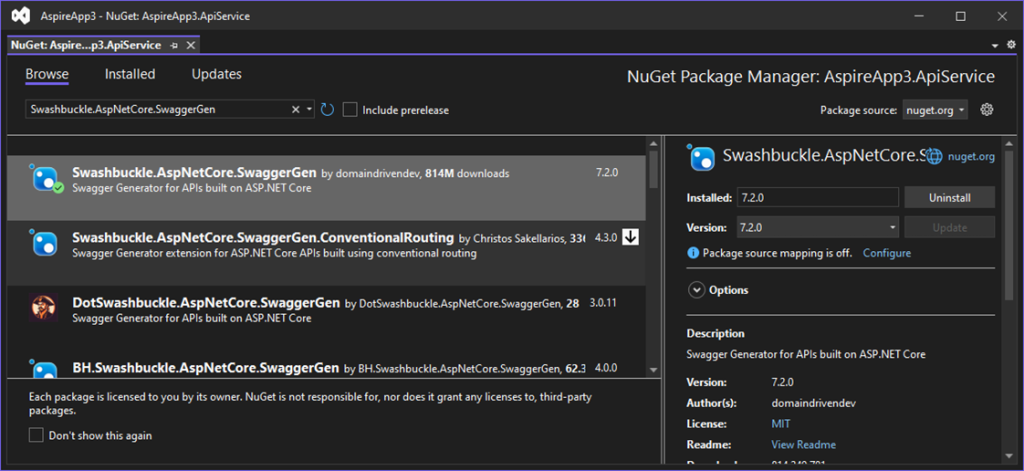
Adding Swashbuckle.AspNetCore.SwaggerUI NuGet package.

After adding the All NuGet package to the Project.


Adding Model to API Service Project.


Code Snippet of Employee Model
using System.ComponentModel.DataAnnotations.Schema;
using System.ComponentModel.DataAnnotations;

namespace AspireApp3.ApiService.Models;

[Table("Employee")]
public class Employee
{
    [Key]
    public int Id { get; set; }
    public string Name { get; set; }
    public string? Department { get; set; }
    public string? Position { get; set; }
    public string? Status { get; set; }
    public string? Email { get; set; }
    public string? Phone { get; set; }
    public string? Address { get; set; }
    public string? City { get; set; }
    public string? State { get; set; }
    public string? PinCode { get; set; }
    public string? Country { get; set; }

}
Adding Database Context Class.
We are going to use Entity Framework core for inserting data into PostgreSQL Database. For using entity framework core, we need to create a class which should inherit the Database context class.


Adding Class with name DataDbContext which is inheriting from DbContext class.
using AspireApp3.ApiService.Models;
using Microsoft.EntityFrameworkCore;

namespace AspireApp3.ApiService.Data;

public class DataDbContext : DbContext
{
    public DataDbContext(DbContextOptions<DataDbContext> options) : base(options) { }

    // Define your DbSets (tables) here
    public DbSet<Employee> Employees { get; set; }
}
After adding the DataDbContext class next we are going to Register it in Program.cs class as shown below. Where UserDatabase is a connection name.
builder.AddNpgsqlDbContext<DataDbContext>("UserDatabase");After Registering NpgsqlDbContext next we are going to Add API Controller.
Adding API Controller.


Added Empty API Controller
using Microsoft.AspNetCore.Http;
using Microsoft.AspNetCore.Mvc;

namespace AspireApp3.ApiService
{
    [Route("api/[controller]")]
    [ApiController]
    public class EmployeesController : ControllerBase
    {
    }
}
After adding the API controller, the next step is to implement methods for inserting data into the PostgreSQL Database and retrieving values from it.
To achieve this, we will use constructor injection to obtain an instance of the DataDbContext Class.
Code Snippet of EmployeesController
using AspireApp3.ApiService.Data;
using AspireApp3.ApiService.Models;
using Microsoft.AspNetCore.Http;
using Microsoft.AspNetCore.Mvc;
using Microsoft.EntityFrameworkCore;

namespace AspireApp3.ApiService
{
    [Route("api/[controller]")]
    [ApiController]
    public class EmployeesController : ControllerBase
    {
        private readonly DataDbContext _context;

        /// <summary>
        ///
        /// </summary>
        /// <param name="context"></param>
        public EmployeesController(DataDbContext context)
        {
            _context = context;
        }

        [HttpGet]
        public async Task<IActionResult> GetEmployees()
        {
            var listodEmployees = await _context.Employees.ToListAsync();
            return Ok(listodEmployees);
        }

        [HttpPost]
        public async Task<bool> AddEmployees([FromBody] Employee employees)
        {
            try
            {
                await _context.Employees.AddAsync(employees);
                await _context.SaveChangesAsync();
            }
            catch (Exception e)
            {
                throw;
            }
            return true;
        }
    }
}
After Adding the Controller we are going to register the Service in the Program.cs class.
Adding Services to Program.cs class of API Service
We have Added Swagger, DBContext and Controller we need to Add these services to the program.cs.
using AspireApp3.ApiService.Data;

var builder = WebApplication.CreateBuilder(args);

// Add service defaults & Aspire client integrations.
builder.AddServiceDefaults();

// Add API Documentation
builder.Services.AddSwaggerGen();

// Add controllers services
builder.Services.AddControllers();

// Add services to the container.
builder.Services.AddProblemDetails();

// is a method commonly used in .NET applications, especially in the context of Entity Framework Core (EF Core), to configure a PostgreSQL
// database as the underlying database provider for your application's DbContext.

builder.AddNpgsqlDbContext<DataDbContext>("UserDatabase");

var app = builder.Build();
// Configure the HTTP request pipeline.
app.UseExceptionHandler();

app.MapControllers();
app.UseSwagger();
app.UseSwaggerUI();
app.MapDefaultEndpoints();
app.Run();
After completing the integration with the API Service, we can now run the application for the first time.
This is the Dashboard for Aspire project where you will see all applications which are running.
Aspire Dashboard


The application runs in the docker container.

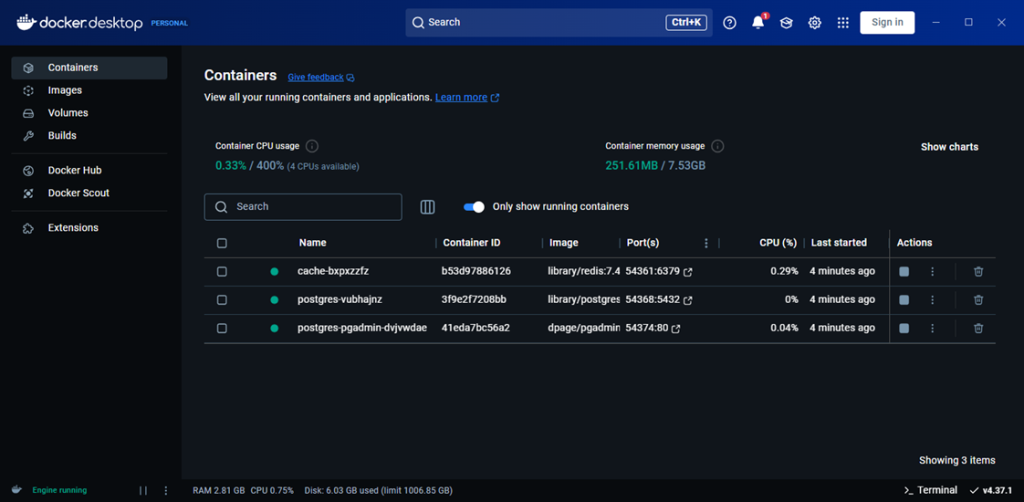
Creating PostgreSQL Database Using pgAdmin.
For opening the UI of PgAdmin click on Container: postgres-pgadmin Endpoints.

After clicking on it you will see PgAdmin Dashboard.
pgAdmin Database Dashboard


Creating Database from pgAdmin


Adding a database with the name “UserDatabase”

Creating Table “Employee”


After creating a database and adding a table. Next, we are going to call the API service to insert data.
Call API Service for Inserting data using Postman.


To view the inserted data, we can utilize PgAdmin.
View Inserted Data from PgAdmin


Call API Service for Reading data.


I hope you have liked the article. In this article, you have learned how to create an Aspire project and configure the PostgreSQL database for Inserting and reading data from it.
GitHub Link :- https://github.com/saineshwar/Aspire_postgres